
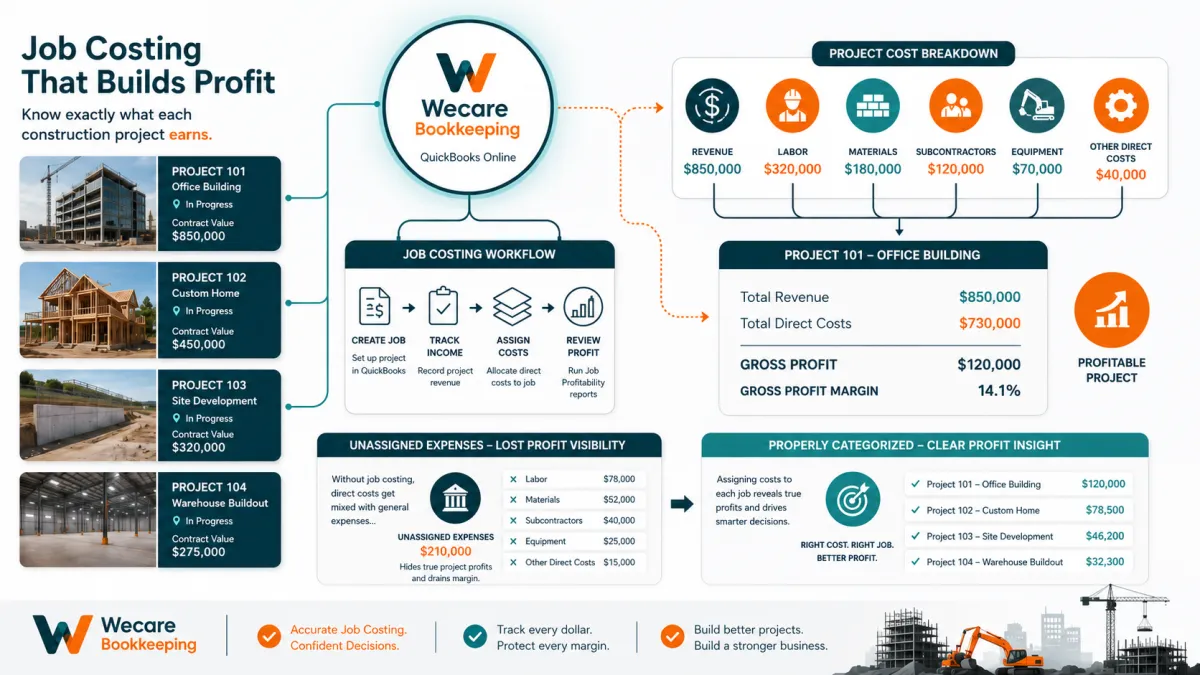
How to Set Up Job Costing in QuickBooks Online for Contractors
A contractor can complete a busy month, collect substantial customer payments, and still be uncertain about which projects actually made money.
Revenue alone does not answer that question.
To understand project profitability, the business must connect each job’s revenue with the labor, materials, subcontractors, equipment, and other direct costs required to complete it.
That process is called job costing.
QuickBooks Online can support job costing when the file, products and services, customers, projects, accounts, and transaction workflows are structured consistently. Its Projects feature can group estimates, income, expenses, and other activity connected with a specific customer job, allowing the business to review project-level results from one place.
The software does not create reliable job-cost reports automatically. Every relevant transaction still needs to be recorded correctly and assigned to the proper project.
What Is Job Costing?
Job costing is the process of tracking the revenue and direct costs associated with an individual project.
For a contractor, those direct costs may include:
Employee labor
Materials
Subcontractors
Equipment rental
Permits
Delivery charges
Disposal fees
Project-specific insurance
Other costs incurred specifically for the job
A basic project-profit calculation is:
Project revenue − direct project costs = project gross profit
For example, assume a contractor completes a renovation with:
$80,000 of project revenue
$22,000 of direct labor
$18,000 of materials
$14,000 of subcontractor costs
$4,000 of equipment and other direct costs
The project’s gross profit would be:
$80,000 − $58,000 = $22,000
Its gross margin would be:
$22,000 ÷ $80,000 = 27.5%
That result is more useful than simply knowing that the customer paid $80,000.
It helps the contractor evaluate whether the original estimate was realistic, whether costs were controlled, and whether similar work should be priced differently in the future.
Why Contractors Need Project-Level Cost Tracking
Without job costing, project expenses are often mixed together in broad accounts such as:
Materials
Subcontractors
Payroll
Equipment rental
Repairs
General construction expenses
Those accounts may show what the company spent overall, but they do not show which project generated each cost.
That creates several problems:
Profitable jobs can appear similar to unprofitable jobs
Cost overruns may remain hidden
Subcontractor invoices may be assigned to the wrong project
Labor may not be included in project profitability
Pricing decisions may rely on incomplete information
Estimates may not improve from one project to the next
The owner may confuse cash received with profit earned
A structured job-costing system gives the contractor a clearer connection between project activity and financial results.
Start With a Clean QuickBooks Foundation
Job costing will not solve underlying bookkeeping problems.
Before building project reports, confirm that QuickBooks has:
A practical chart of accounts
Correct bank and credit-card connections
Accurate opening balances
Reconciled financial accounts
A usable customer list
A consistent products and services list
Reliable payroll and subcontractor workflows
Clearly separated business and personal activity
If transactions are duplicated, unreconciled, or categorized inconsistently, project reports will inherit those problems.
For additional setup guidance, read QuickBooks Online Setup Mistakes That Create Problems Later.
Apply the existing internal link to that article title.
Turn On the Projects Feature
QuickBooks Online Projects is intended to group financial activity related to a specific customer job.
A project can contain:
Estimates
Invoices
Payments
Expenses
Bills
Time activity
Labor costs
Project-specific reports
QuickBooks currently makes Projects available in QuickBooks Online Plus and Advanced, as well as Intuit Enterprise Suite. The feature can track income and costs for individual projects and display project profitability.
Before building the workflow, confirm that the business’s QuickBooks subscription includes the required features.
Create a Customer and Project Structure
Each project should be connected to the correct customer.
A practical structure may look like this:
Customer: Greenfield Properties
Project: 2026 Kitchen Renovation
Or:
Customer: Maria Thompson
Project: 145 Oak Street Addition
The project name should be specific enough that team members can identify the correct job when entering transactions.
Useful naming elements may include:
Customer name
Property address
Internal job number
Project type
Contract year
Examples:
26018 | Rivera | Bathroom Remodel
26024 | 885 Pine Street | Tenant Improvement
26031 | Benson | Roof Replacement
The business should adopt one naming convention and use it consistently.
Avoid vague project names such as:
New job
Remodel
Current project
Smith work
Clear naming reduces the risk of costs being assigned to the wrong job.
Build a Practical Chart of Accounts
The chart of accounts should identify the economic nature of each cost.
It should not rely on a separate expense account for every customer or project.
A contractor might use accounts such as:
Income
Construction income
Renovation income
Service income
Change-order income
Other project income
Direct project costs
Direct labor
Construction materials
Subcontractors
Equipment rental
Project permits
Project delivery and freight
Disposal and hauling
Other direct project costs
Operating expenses
Office salaries
General insurance
Advertising
Bookkeeping
Software
Office supplies
Vehicle expenses
Professional fees
General administrative expenses
The project identifies which job incurred the cost.
The account identifies what type of cost it was.
For example:
Account: Construction materials
Project: 26024 | 885 Pine Street | Tenant Improvement
This combination supports both company-wide expense reporting and project-level profitability.
Separate Direct Costs From Overhead
One of the most important job-costing decisions is determining whether a cost belongs directly to a project or supports the company more broadly.
Direct costs
A direct cost can be connected to a specific project.
Examples include:
Lumber purchased for one renovation
A subcontractor hired for one installation
Equipment rented for one site
A permit for one customer project
Labor hours worked on one job
Overhead costs
Overhead supports the business as a whole rather than one specific project.
Examples may include:
Office rent
General bookkeeping
Administrative salaries
Company-wide software
General marketing
Business licenses
General liability insurance
Office supplies
Misclassifying overhead as a project cost can make a job appear less profitable than it really was.
Failing to capture direct costs can make a project appear more profitable than it really was.
The business should document how common costs are treated and apply the policy consistently.
Set Up Products and Services for Project Activity
QuickBooks products and services can help organize customer invoices, estimates, and project-related purchases.
A contractor may create service items for:
General contracting
Design and planning
Demolition
Framing
Electrical work
Plumbing
Painting
Flooring
Project management
Change orders
Material or cost items may include:
Lumber
Fixtures
Tile
Concrete
Electrical materials
Plumbing materials
Equipment rental
Subcontractor services
The list should provide useful reporting detail without becoming unmanageable.
Creating hundreds of narrowly defined items can make transaction entry difficult.
Using only one item called “Construction” may not provide enough information.
The appropriate level of detail depends on the contractor’s services, estimating process, and reporting needs.
Create an Estimate or Project Budget
An estimate establishes the expected project revenue and scope.
It may include:
Labor
Materials
Subcontractors
Equipment
Permits
Markups
Allowances
Change orders
Other project components
The estimate should reflect the same cost categories the business plans to monitor during the job.
This makes it easier to compare expectations with actual activity later.
QuickBooks Online Advanced currently includes project cost estimates that can compare forecast income and costs with actual results. Availability and workflow can differ by subscription, so contractors should confirm the features included in their plan.
Even when a detailed estimate-versus-actual report is not available, consistent project coding can still support useful profitability analysis.
Assign Every Project Expense to the Correct Job
When recording a bill, expense, check, or bank-feed transaction, assign the correct customer or project.
This applies to costs such as:
Materials
Subcontractors
Equipment rentals
Permits
Freight
Project-specific professional services
Other direct costs
QuickBooks allows existing expenses and newly entered bills, checks, and expenses to be assigned to a project through the Customer or Project field. Project totals update as income and costs are added.
A project cost should include:
Correct vendor
Transaction date
Expense or Cost of Services account
Clear description
Amount
Correct customer or project
Supporting receipt, bill, or contract when available
The account alone is not enough.
A $6,000 subcontractor invoice categorized correctly to Subcontractors but left unassigned to a project will not appear in the intended job’s profitability.
Track Materials by Project
Materials are often one of the largest contractor costs.
Each purchase should be assigned to the project that used the materials.
The documentation should support:
Vendor
Purchase date
Project
Material type
Amount
Applicable sales tax
Credits or returns
Reimbursements
Remaining amounts due
When one purchase contains materials for several projects, split the transaction using supported documentation.
Do not assign the full purchase to one project merely because it is faster.
Material returns and vendor credits should also be assigned to the same project so the net cost remains accurate.
Track Subcontractors by Project
Subcontractor bills should identify the job performed.
A subcontractor workflow may include:
Create the subcontractor as a vendor.
Enter the bill or expense.
Use the appropriate subcontractor-cost account.
Assign the correct customer or project.
Attach the invoice or supporting document.
Record the payment separately.
Review unpaid subcontractor bills.
Reconcile the related bank or credit-card account.
The invoice description should contain enough detail to understand the work performed.
Examples:
Electrical rough-in for 885 Pine Street
Cabinet installation for Rivera kitchen remodel
Roofing labor for Benson project
Avoid descriptions such as:
Work completed
Labor
Contractor invoice
Clear documentation improves both project review and month-end bookkeeping.
Track Employee and Contractor Labor
Labor is frequently missing from job-cost reports.
A contractor may track:
Employee hours by project
Employee labor cost by project
Contractor time
Project management time
Supervisory time
Travel or mobilization time when relevant
QuickBooks Online Plus and Advanced can use recorded employee and contractor time to calculate project profitability. Intuit also supports integrations with QuickBooks Time and Workforce for labor-cost tracking.
A useful labor workflow requires employees and contractors to select the correct project when submitting time.
Without project-level time records, labor may remain in total payroll expense without appearing in the relevant job.
Distinguish Billable Expenses From Project Costs
A project cost and a billable expense are related but different concepts.
A project cost is an expense incurred to complete the work.
A billable expense is a cost the business intends to charge or pass through to the customer.
Not every project cost is automatically billed separately.
For example:
Materials may be included in a fixed contract price
Permit costs may be reimbursable
Equipment rental may be included in the estimate
A special customer request may be billed as an additional charge
QuickBooks Online can mark eligible expenses as billable and later add them to the customer’s invoice. This workflow is available in supported QuickBooks Online subscriptions and should be configured to match the contractor’s billing process.
Do not mark every project expense as billable unless the contract and billing workflow support it.
Record Project Revenue Consistently
Project revenue may be recorded through:
Estimates converted to invoices
Progress invoices
Fixed-price invoices
Time-and-material invoices
Change-order invoices
Customer deposits
Final invoices
Customer payments
The invoicing workflow should connect revenue to the same project used for the related costs.
Otherwise, QuickBooks may show the project costs without the corresponding income.
Customer payments should be applied to the correct invoices.
Bank deposits should complete the payment workflow rather than create duplicate revenue.
Handle Customer Deposits Carefully
A customer deposit may represent money received before the related work has been completed or invoiced.
The appropriate treatment depends on:
The contract
The invoicing process
The nature of the payment
The accounting method
Professional guidance
The bookkeeping records should preserve:
Customer
Project
Payment date
Amount
Contract or invoice reference
How the deposit was later applied
Any remaining unapplied amount
Do not automatically categorize every customer deposit as project income without considering the documented workflow.
Wecare Bookkeeping does not provide legal, tax, or specialized revenue-recognition determinations. Those matters should be reviewed with the appropriate professional.
Include Change Orders in the Project
Change orders can materially affect both revenue and cost.
A change-order workflow should document:
Original project
Requested change
Customer approval
Additional revenue
Additional labor
Additional materials
Additional subcontractor costs
Revised completion timeline
Related invoices and payments
The change order should remain connected to the original project unless the contractor has a documented reason to track it separately.
Failing to record change-order costs can make the original estimate appear more accurate than it was.
Failing to invoice approved changes can reduce project profitability and create collection problems.
Review Project Profitability During the Job
Do not wait until the project is finished to review profitability.
A periodic project review can identify:
Materials exceeding the estimate
Labor hours running over budget
Unrecorded subcontractor bills
Approved work not yet invoiced
Customer payments not applied correctly
Costs assigned to the wrong project
Unassigned bank-feed transactions
Change orders missing from the billing workflow
Reviewing the project while work is still active gives the contractor an opportunity to investigate problems before closing the job.
Review the Project After Completion
When a project is finished, complete a final financial review.
Confirm that:
All customer invoices were issued
Customer payments were applied
All material purchases were recorded
Vendor credits were included
Subcontractor bills were entered
Employee and contractor time was assigned
Equipment and permit costs were included
Change orders were recorded
Unassigned transactions were investigated
Bank and credit-card accounts were reconciled
Final project revenue and costs were reviewed
Then compare:
Estimated revenue versus actual revenue
Estimated costs versus actual costs
Expected gross profit versus actual gross profit
Expected margin versus actual margin
The purpose is not only to evaluate one completed job.
The review should improve future estimating, project controls, and pricing decisions.
Common QuickBooks Job-Costing Mistakes
Creating projects but not assigning transactions
A project with no assigned bills, expenses, time, or invoices will not produce meaningful profitability information.
Tracking revenue but not direct labor
Ignoring labor can make a project appear substantially more profitable than it was.
Categorizing costs without selecting the project
The expense account may be correct, but the project report will remain incomplete.
Assigning shared overhead arbitrarily
General operating expenses should not be forced into individual jobs without a documented allocation method.
Recording subcontractor payments without entering bills
Recording only the bank payment may weaken accounts-payable tracking and supporting documentation.
Using vague project names
Unclear names increase the risk of assigning transactions to the wrong job.
Duplicating revenue through invoices and deposits
If revenue was already recorded through an invoice, the related bank deposit should not create additional income.
Ignoring vendor credits and material returns
Project costs remain overstated when returns and credits are not connected to the original job.
Treating every project cost as billable
The billing treatment should follow the contract and invoicing process.
Reviewing profitability only after completion
Problems are harder to correct when they are discovered after the project has closed.
A Practical Monthly Job-Costing Workflow
A structured monthly process may include:
Enter customer invoices, progress billings, and change orders.
Record customer payments and match them to invoices.
Enter material purchases and assign each cost to the correct project.
Record subcontractor bills and assign them to the related jobs.
Review employee and contractor time by project.
Record equipment, permit, delivery, and other direct costs.
Review billable expenses before invoicing customers.
Investigate project activity without an assigned customer or project.
Reconcile bank and credit-card accounts.
Review open customer invoices and unpaid vendor bills.
Run project profitability reports.
Investigate significant differences between estimates and actual results.
The workflow should be documented so everyone entering transactions follows the same process.
Build the Job-Costing Process Before Relying on the Report
A project-profitability report is only as reliable as the transactions assigned to it.
Creating a project in QuickBooks is the beginning of the process, not the end.
The contractor must consistently connect revenue, materials, labor, subcontractors, equipment, change orders, and other direct costs to the correct job. Bank accounts must still be reconciled, vendor bills must still be supported, and unusual project balances must still be reviewed.
Wecare Bookkeeping helps contractors structure QuickBooks Online, organize project activity, improve transaction consistency, reconcile accounts, and maintain clearer financial records.
Learn more about my Bookkeeping for Contractors, QuickBooks Services, and Monthly Bookkeeping Services, or schedule a free consultation to discuss your current job-costing workflow.
Frequently Asked Questions
Can QuickBooks Online track job costs for contractors?
Yes. QuickBooks Online Projects can group income, expenses, estimates, time, and other transactions associated with a specific customer project. The results depend on consistently assigning activity to the correct job.
Which QuickBooks Online plans include Projects?
Intuit currently lists Projects and project profitability features in QuickBooks Online Plus and Advanced. Contractors should confirm current plan availability before selecting or changing a subscription.
Should materials be recorded as expenses or Cost of Services?
The account structure should reflect how the contractor reports direct project costs. Materials used directly on customer jobs are often separated from general operating expenses, but the specific structure should be reviewed for the business.
How do I track labor by project?
Employees and contractors should record time against the correct project. Supported QuickBooks tools can then incorporate labor activity into project profitability.
Should every expense be marked billable?
No. A cost may belong to a project without being separately reimbursable by the customer. Billable treatment should follow the contract and invoicing process.
Can QuickBooks compare estimated and actual project costs?
QuickBooks Online Advanced currently supports project cost estimates and estimate-versus-actual analysis. Other project reporting capabilities may vary by subscription.